Prefer to watch? This short video walks you through everything in this guide.
Pricefy shows all your prices in a single account currency, which you set in General settings. Here’s how to change your currency — and what it does (and doesn’t) affect.
Change your currency
- Click Settings in the sidebar, then the General tab.
Your currency lives under Region Settings:
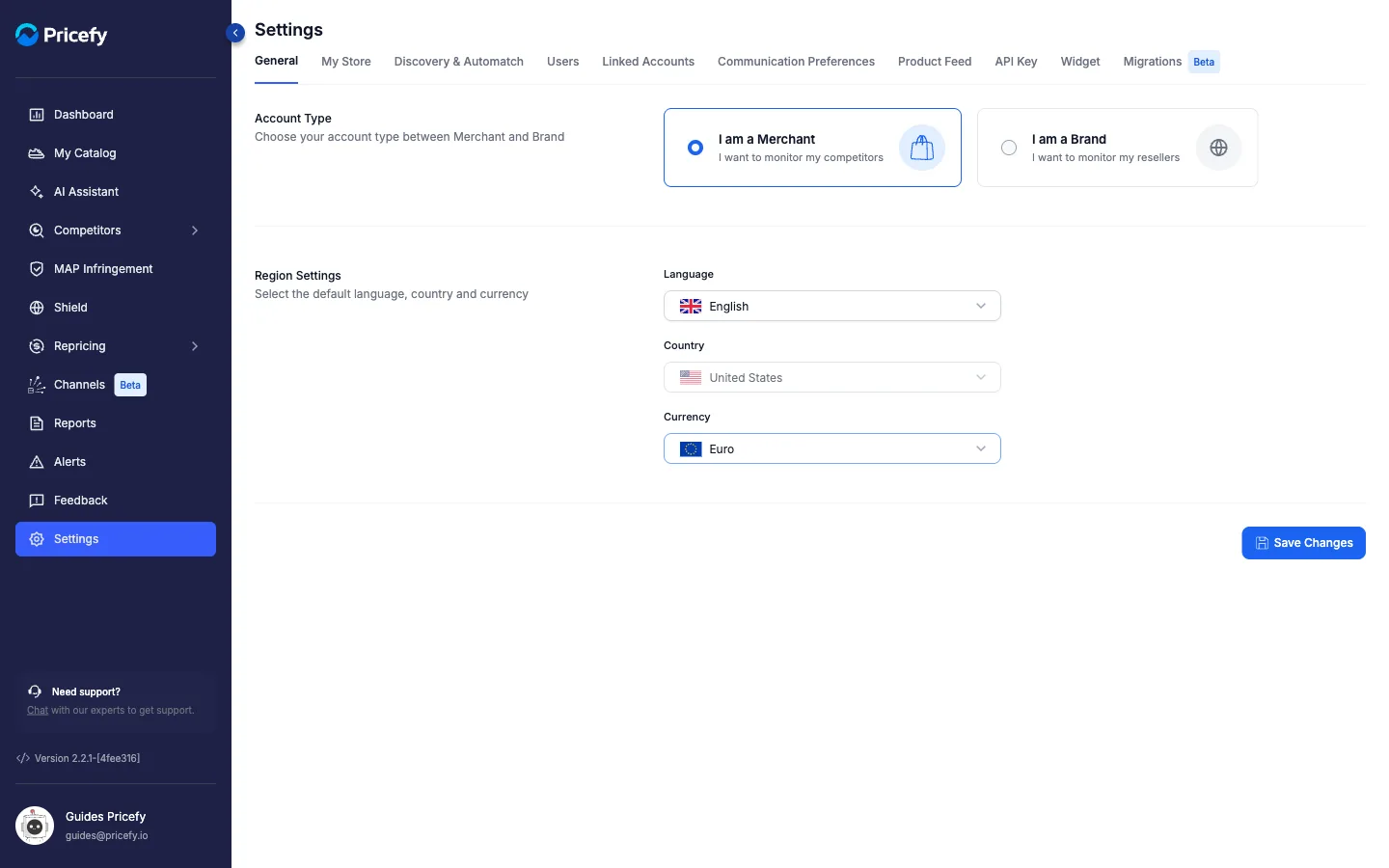
- Open the Currency dropdown and pick your currency — you can type to search.
Choose the currency your store uses:
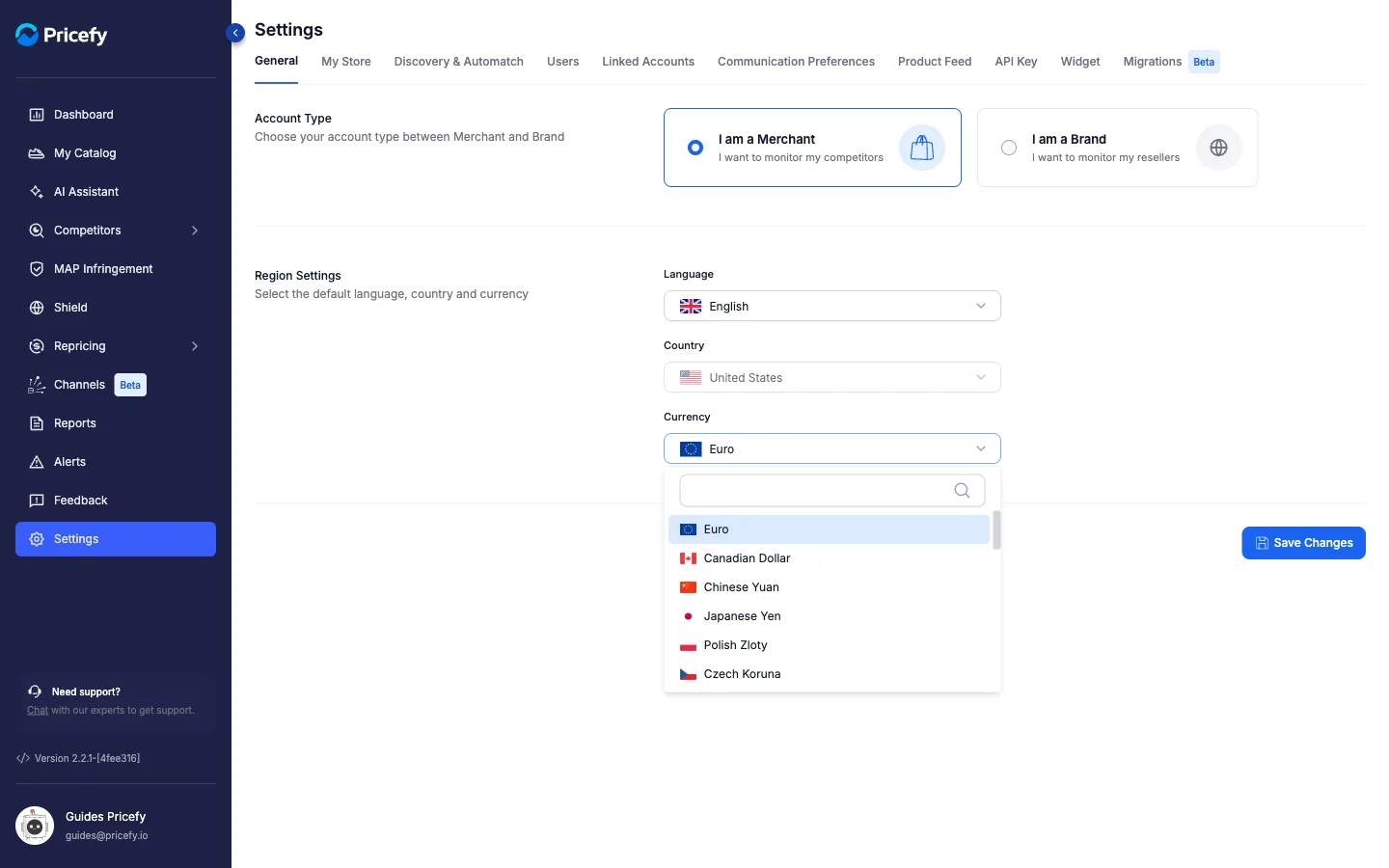
- Click Save Changes. Pricefy briefly reloads so the new currency shows everywhere.
What changing the currency does
- It sets the currency symbol Pricefy uses to display your prices across the app — dashboard, My Catalog, Monitored URLs, reports, and so on.
- It’s your own (merchant) currency. It doesn’t change the currency your competitors’ prices come in — those keep the currency of the site they were read from.
- It relabels the symbol, not the numbers: Pricefy doesn’t convert your price values, so pick the currency your store actually uses.
Want to see prices in another currency just once?
The currency setting is account-wide — there’s no per-page display toggle. For a one-off conversion (say, to sanity-check a figure in another currency), ask the AI Assistant to convert it in its reply. That’s just a calculation in the chat; it doesn’t change your account currency.
Good to know
- Currency and Country are both required before you can save.
- Country is locked once saved — to change it, contact support. Your currency stays editable.
- For the rest of the General tab (account type, country), see General settings: account type and region.