Linked Accounts lets you request access to other Pricefy accounts and, once approved, switch between them without logging out. It’s available to the account owner (master user) and requires a paid plan (Started and up), with a limit on linked accounts that depends on your plan. This guide walks through the whole flow: sending a request, approving it, switching with the Account Switcher, and revoking access.
Open Linked Accounts
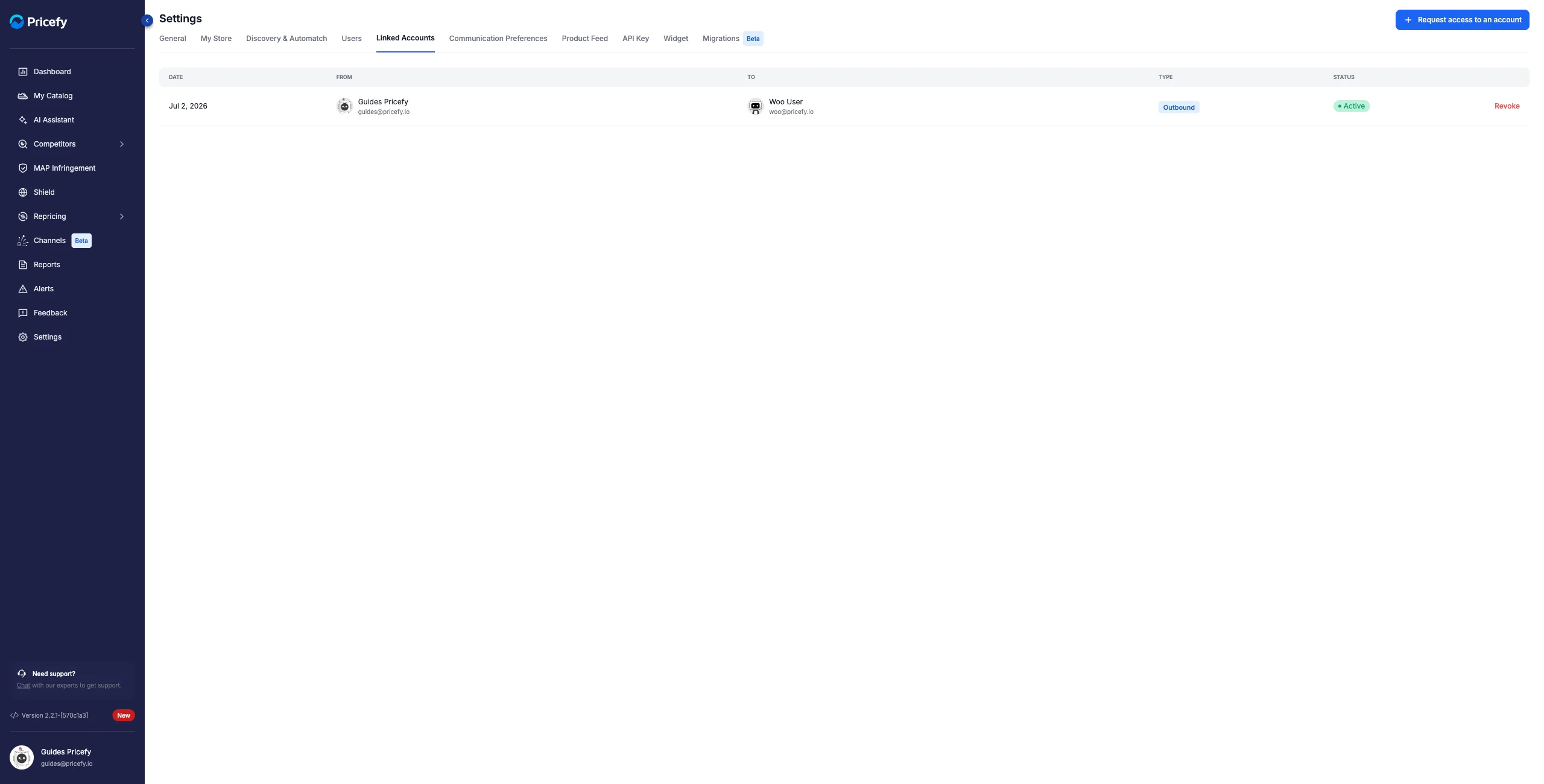
Click Settings in the sidebar, then the Linked Accounts tab. The table lists every link with its Date, From, To, Type and Status; the Request access to an account button sits at the top right.
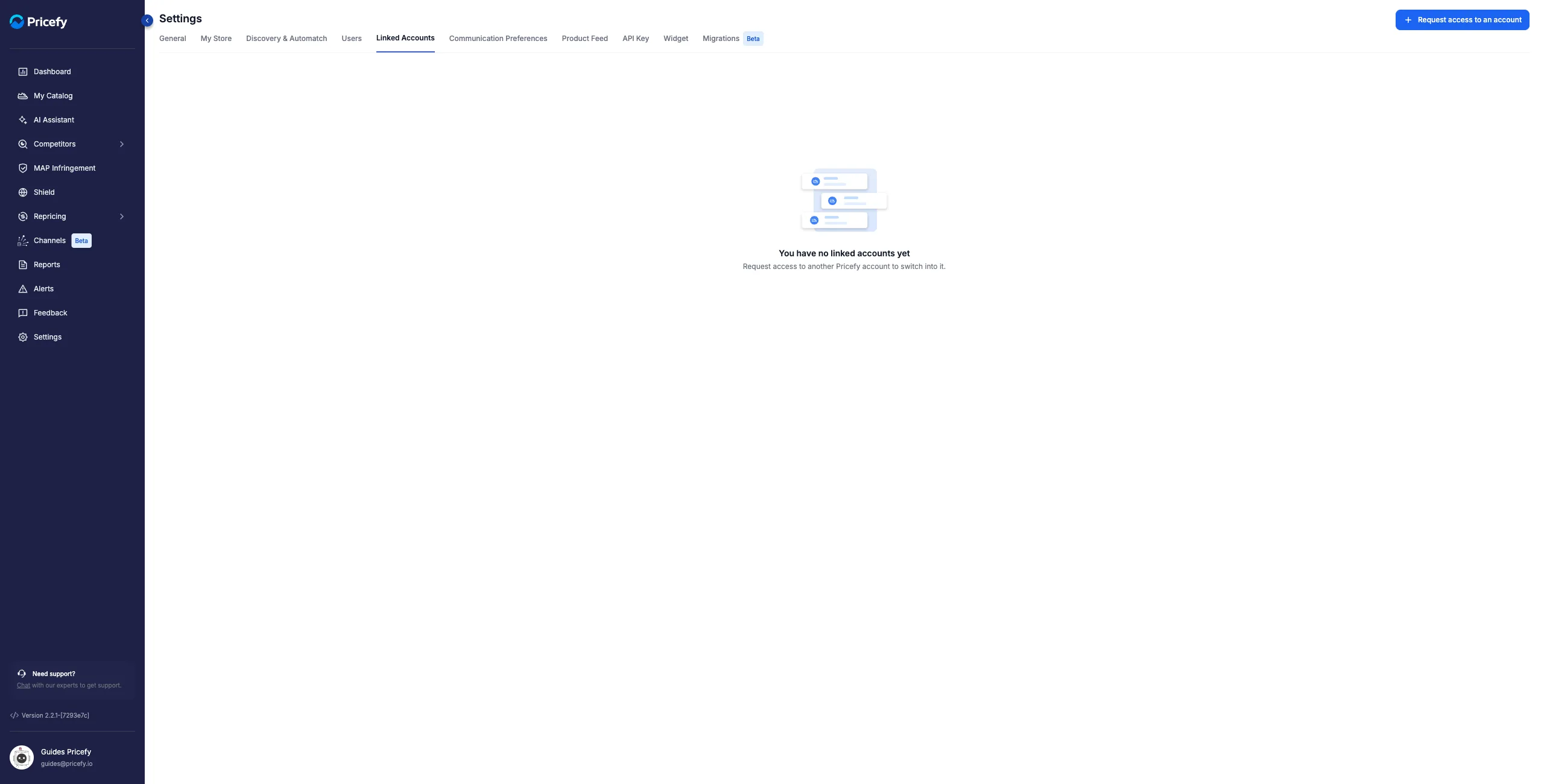
The Type column tells you the direction of each link:
- Outbound — a request you sent: once approved, you can switch into the other account.
- Inbound — a request sent to you: once approved, the other owner can switch into your account.
Request access to another account
- Click Request access to an account at the top right.
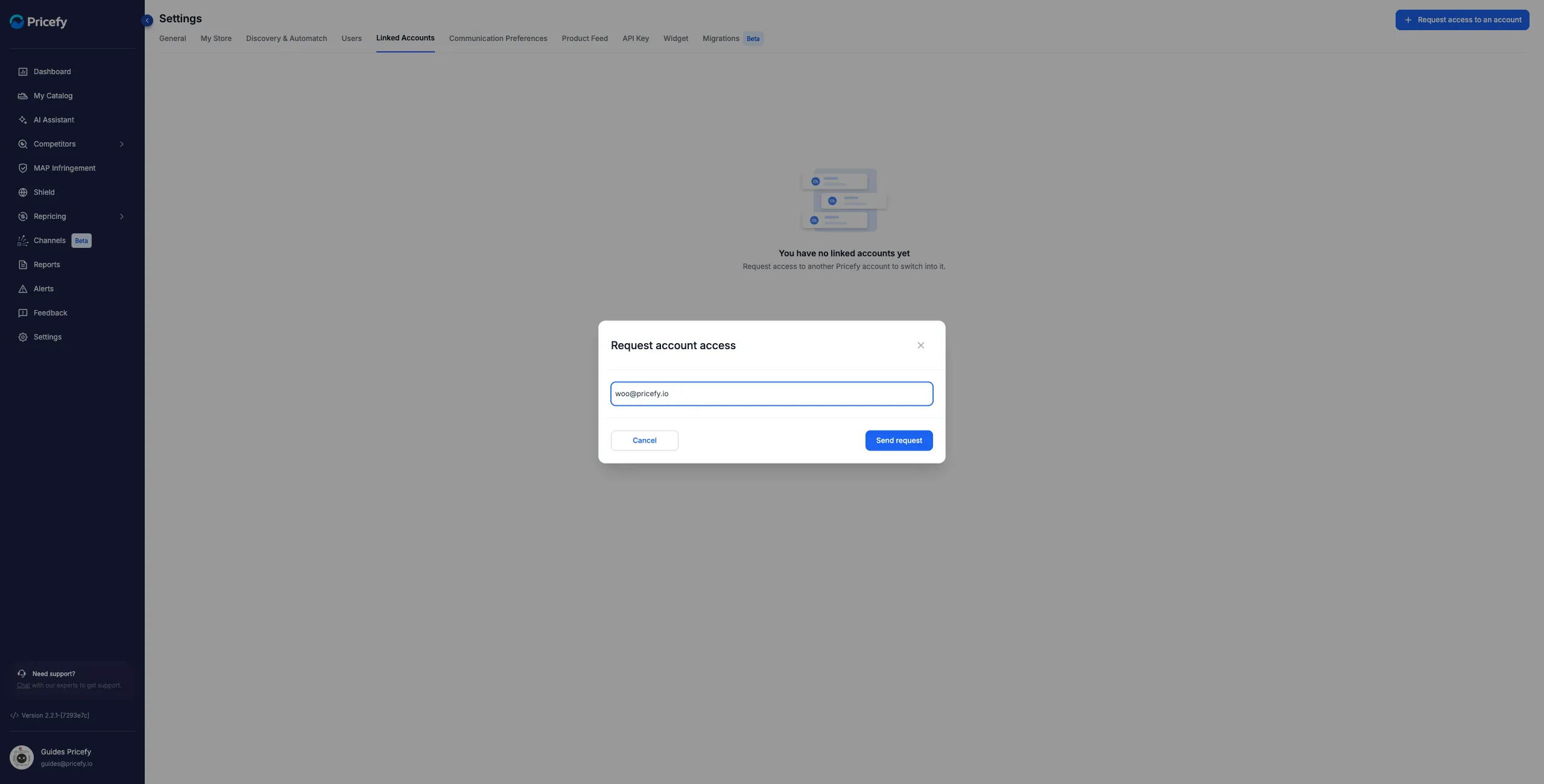
- In the dialog, enter the email of the other account’s owner, then click Send request.
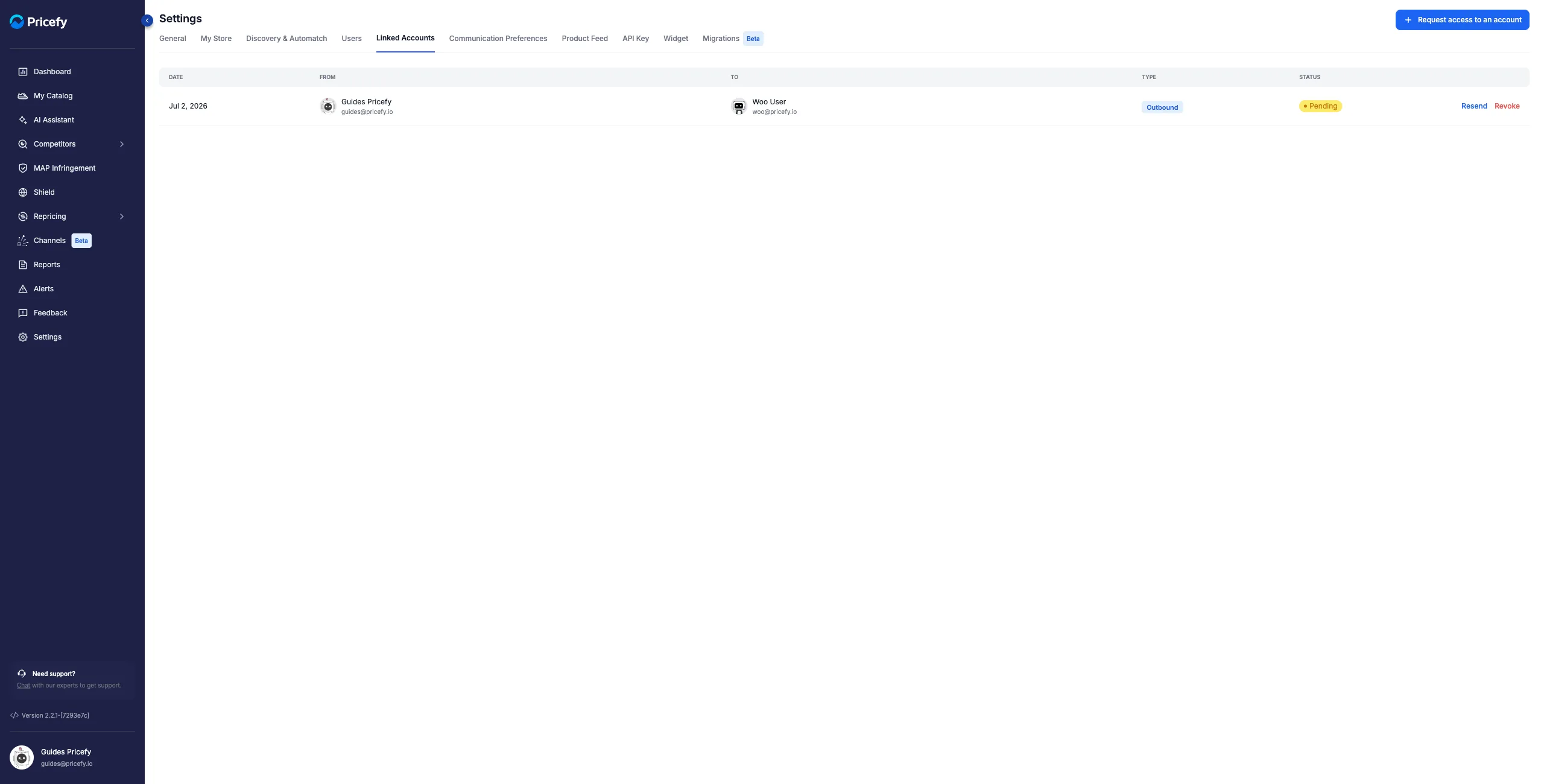
The request appears in your table as Outbound with status Pending. While it waits, you can Resend the notification email or Revoke the request.
Approve or decline an incoming request
When someone requests access to your account, you receive an email with a review link, and the request shows up as Inbound / Pending in your own Linked Accounts tab, with two actions:
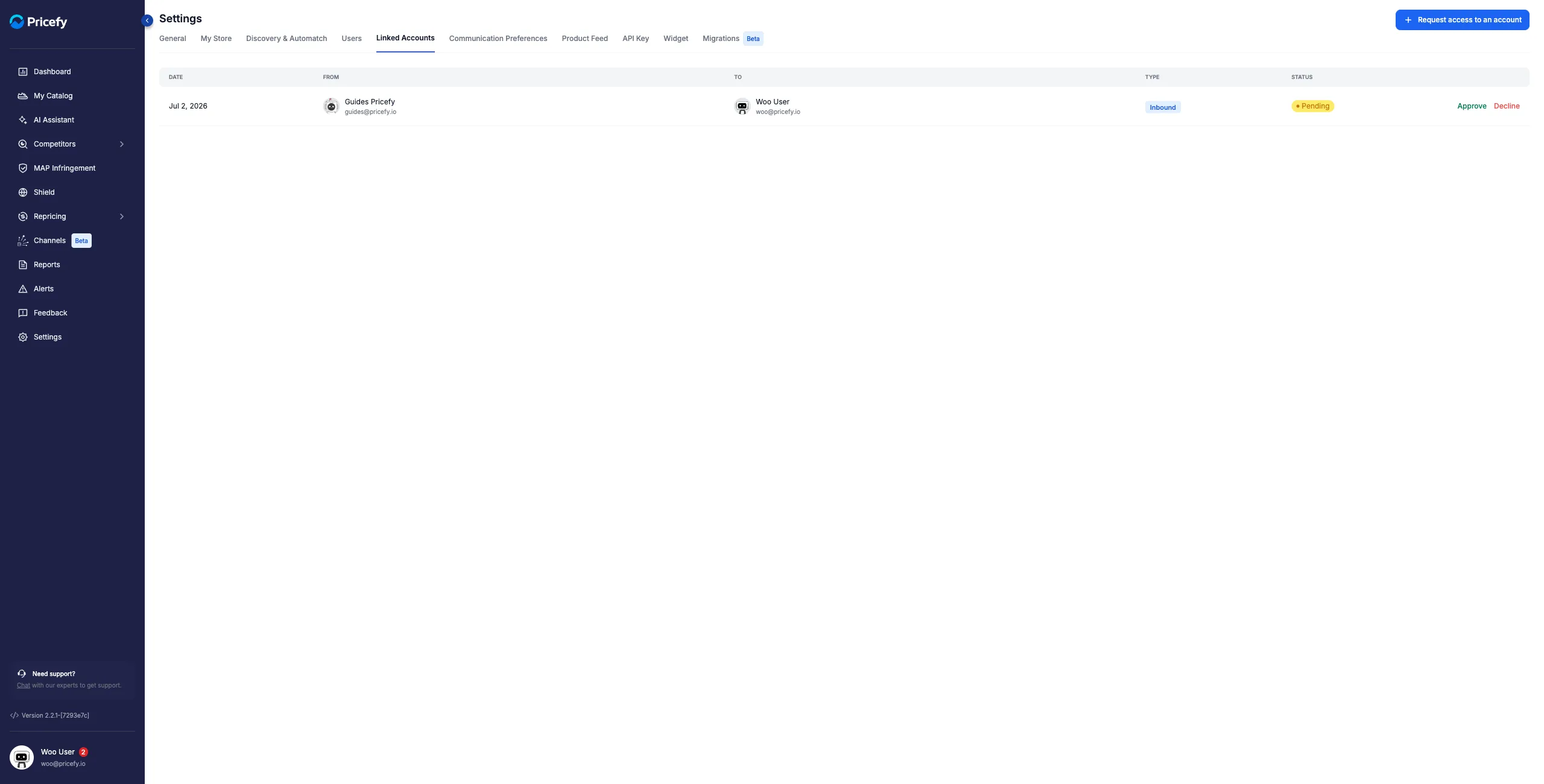
- Approve — activates the link: the requester can now switch into your account.
- Decline — rejects the request.
Once approved, the row turns Active on both sides and the requester is notified by email.
Switch accounts with the Account Switcher
Once a link is active, switching happens from your profile menu, not from the Linked Accounts tab:
- Open your profile menu at the bottom of the sidebar. With at least one active link, an Account Switcher entry appears in the menu.
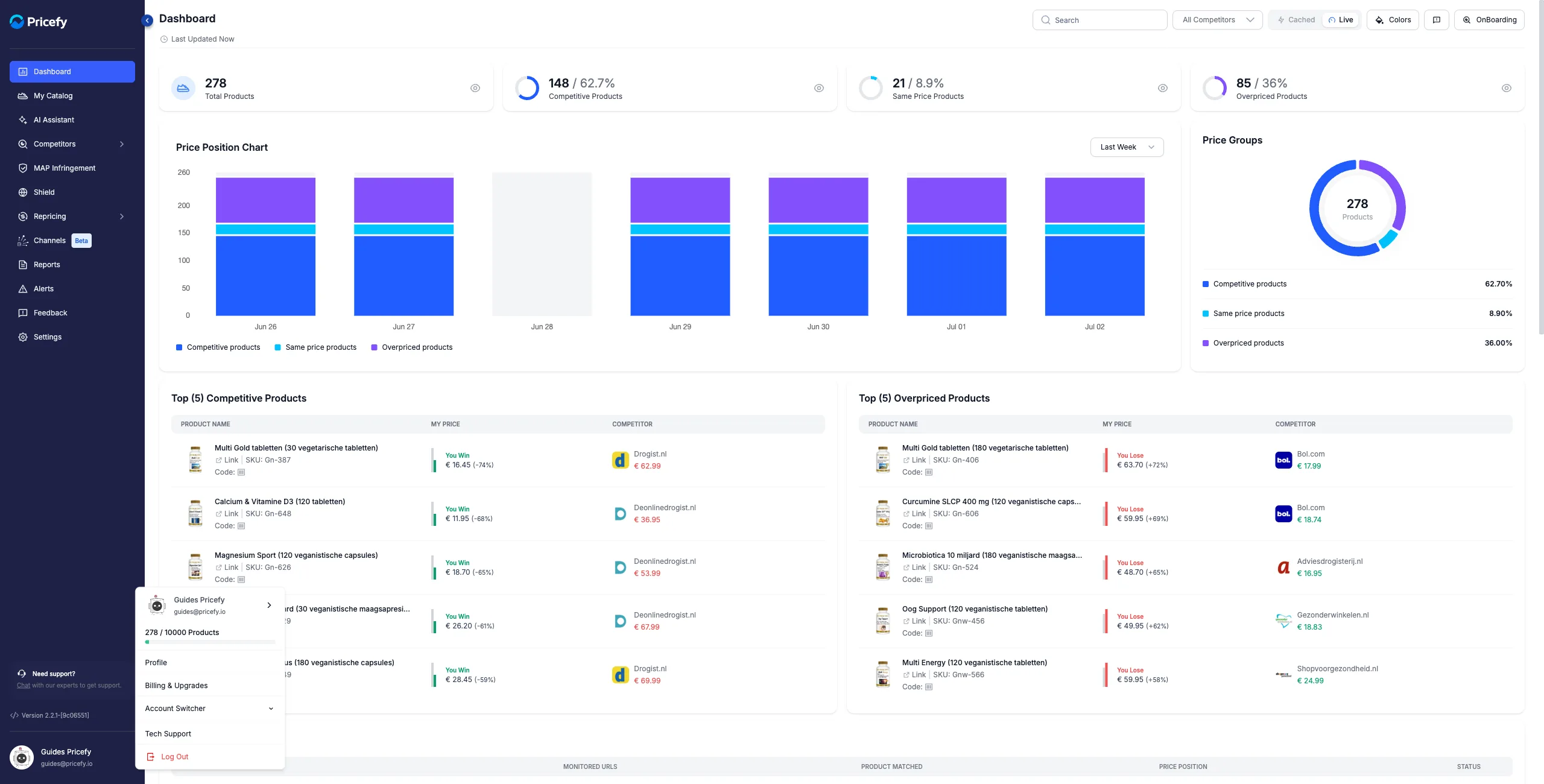
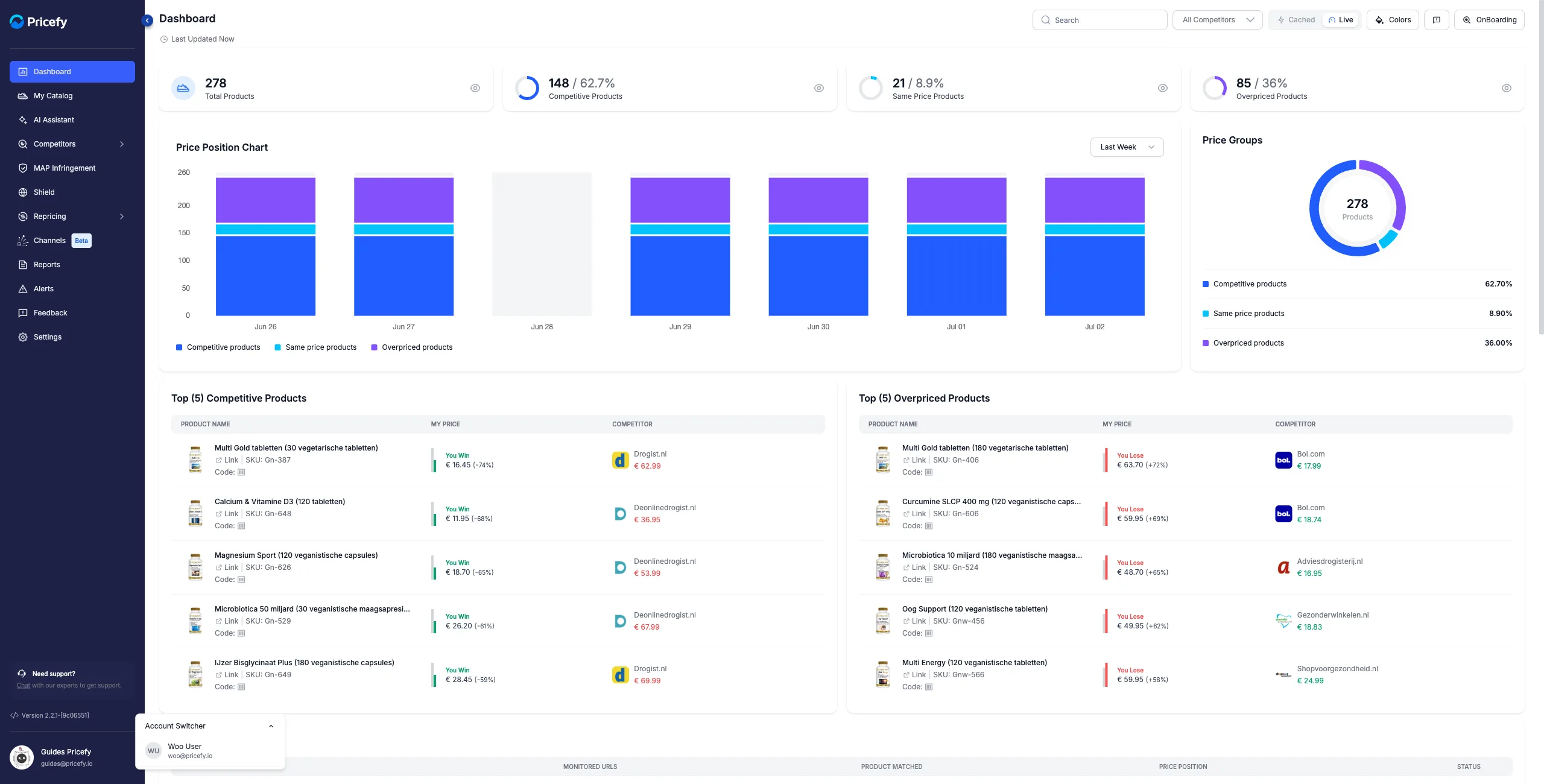
- Click Account Switcher to expand the list of accounts you can access, and pick the one you want to work in.
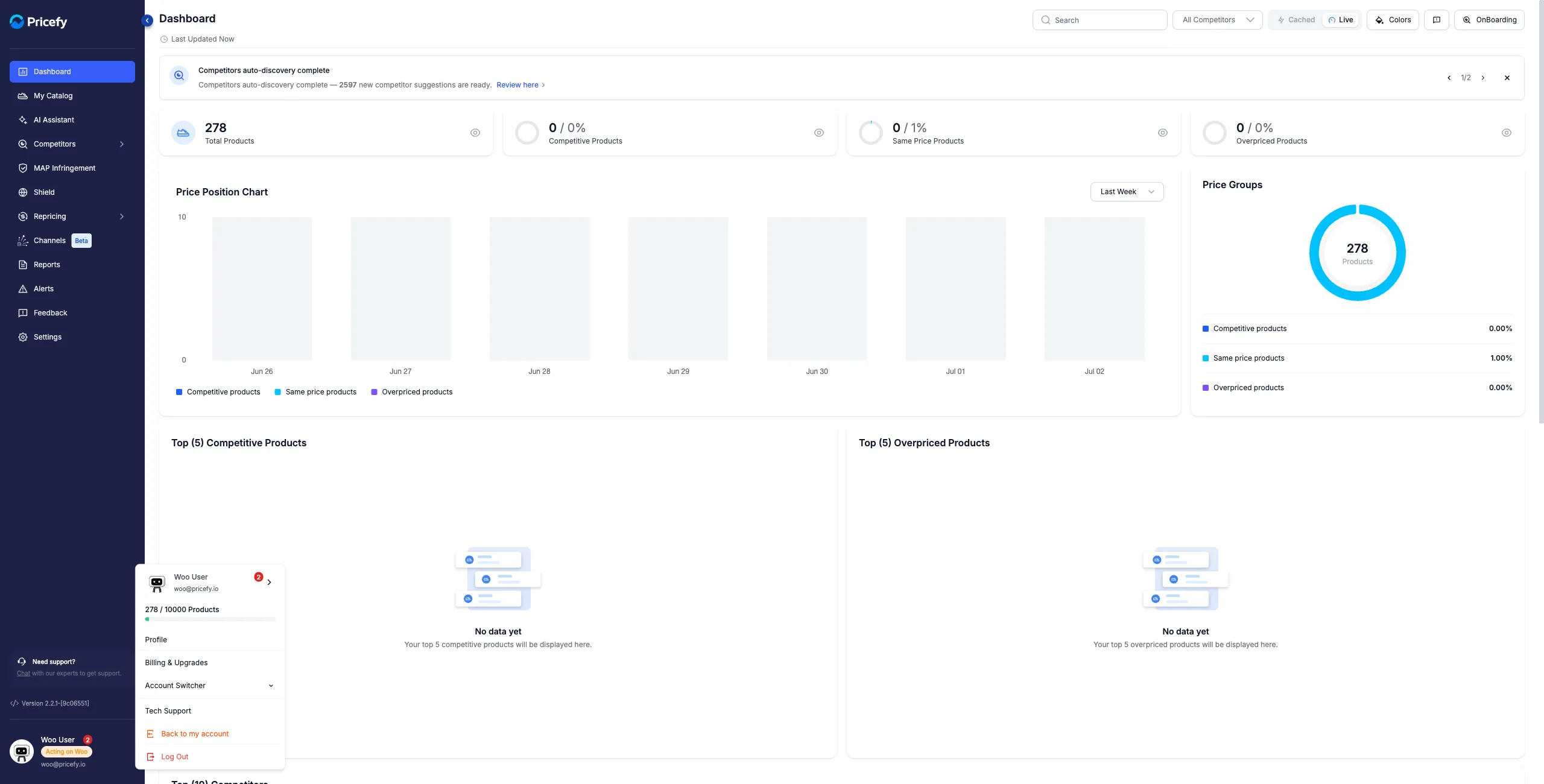
- Pricefy reloads into the selected account: you now see its catalog, competitors and settings, exactly as that owner does. While you work there, the sidebar shows an Acting on badge under the account name.
- To go back, open the profile menu again and click Back to my account.
The Account Switcher only lists accounts that approved your requests (your Outbound links); it stays hidden while you have none.
Revoke access
You can end a link at any time. Each row’s actions depend on its direction and status:
- Approve / Decline — for an incoming (Inbound) request waiting on you.
- Resend / Revoke — for an outgoing (Outbound) request you sent.
- Revoke — to end an active link, from either side.
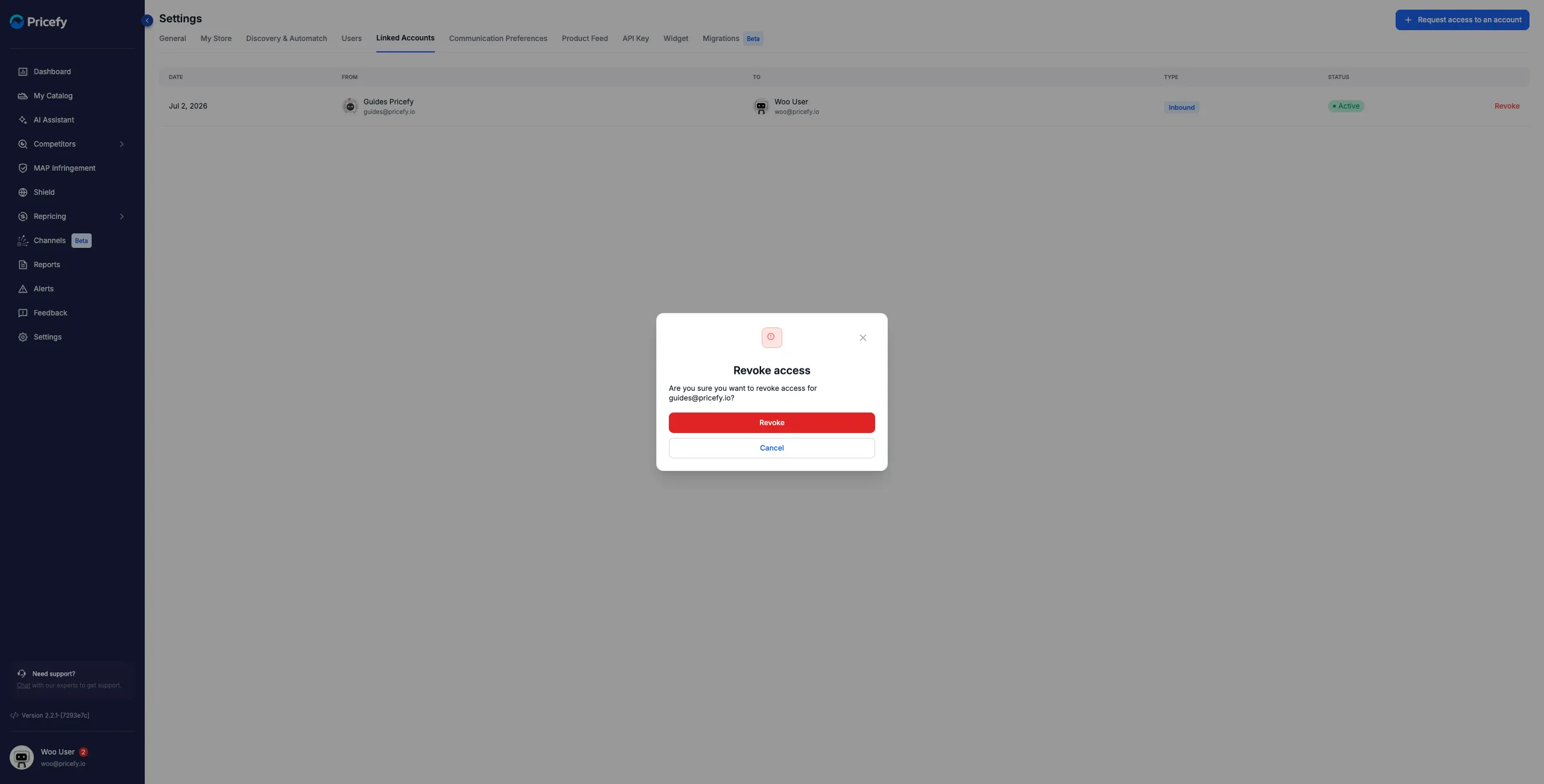
Click Revoke and confirm in the dialog; when an active link is revoked, the other account’s owner is notified by email. Revoking is not permanent — you can send a new request later.
Plans and limits
- Linked Accounts requires a paid plan (Started and up); on the Free plan the request button opens an upgrade prompt instead.
- Each plan includes a maximum number of linked accounts; both pending and active links count toward it.
- When you reach the limit, Pricefy prompts you to upgrade to the next plan to connect more accounts.
Linked Accounts connects separate Pricefy accounts. To invite teammates into your own account instead, see Manage users: invite your team and set permissions.