The Repricing Preview page simulates your repricing rules: for each product it shows the new price a rule would apply, so you can review the suggestions and apply them — to selected products or all at once — without surprises.
Launch a preview
- Open the Repricing section, then Repricing Preview (or click Show Preview on a rule).
- Click Launch all rules preview and wait for Preview successfully completed.
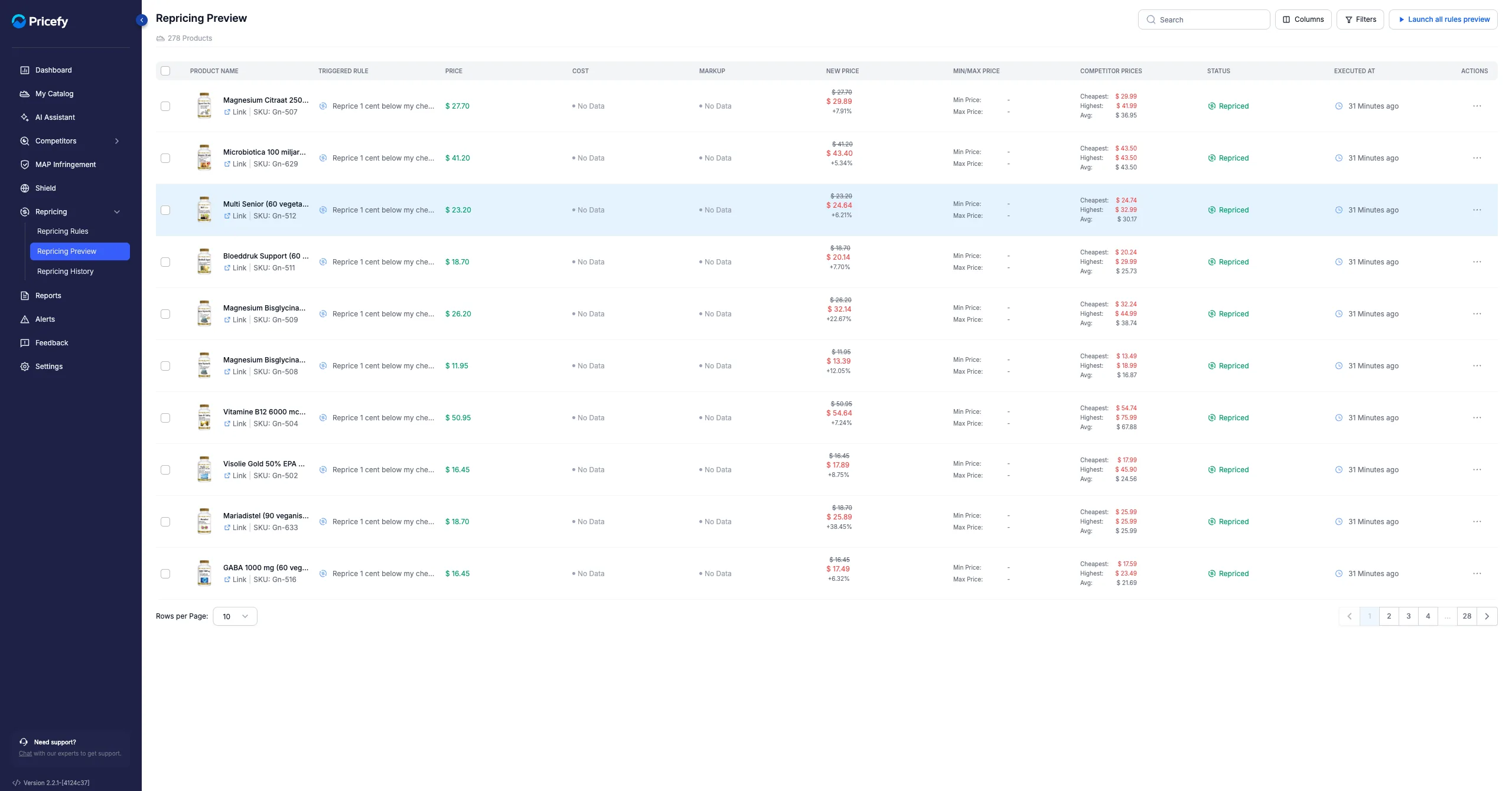
What you see
Each row is a product, with these columns:
- Product Name
- Triggered Rule
- Price, Cost and Markup
- New Price — the suggested price (old price struck through, with the ±% change)
- Min/Max Price
- Competitor Prices
- Status — Suggested, Repriced, Skipped, In Progress or Error
- Executed At
Narrow the list
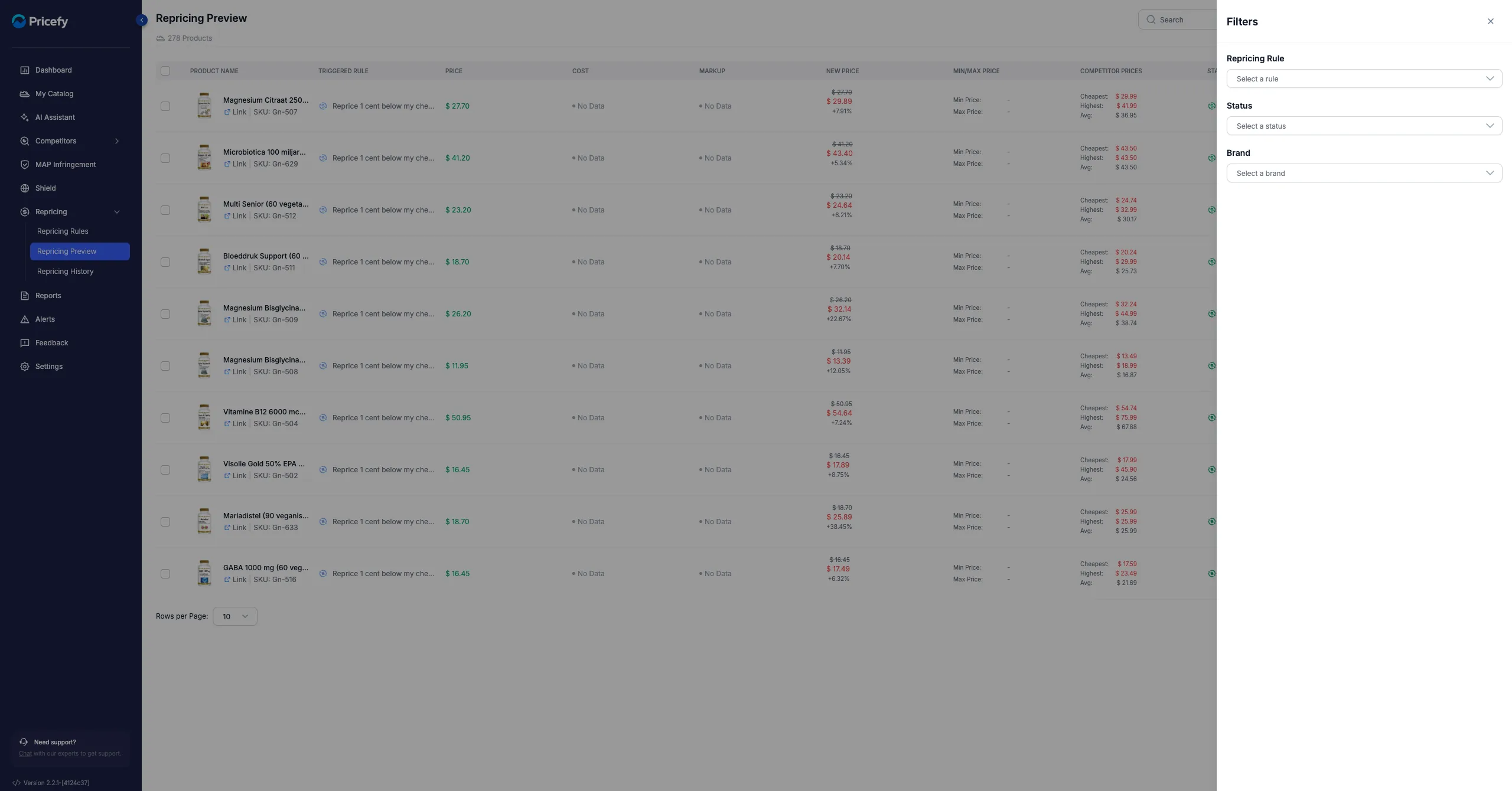
Use Search by product, or open Filters to filter by Repricing Rule, Status or Brand, then click Apply Filter.
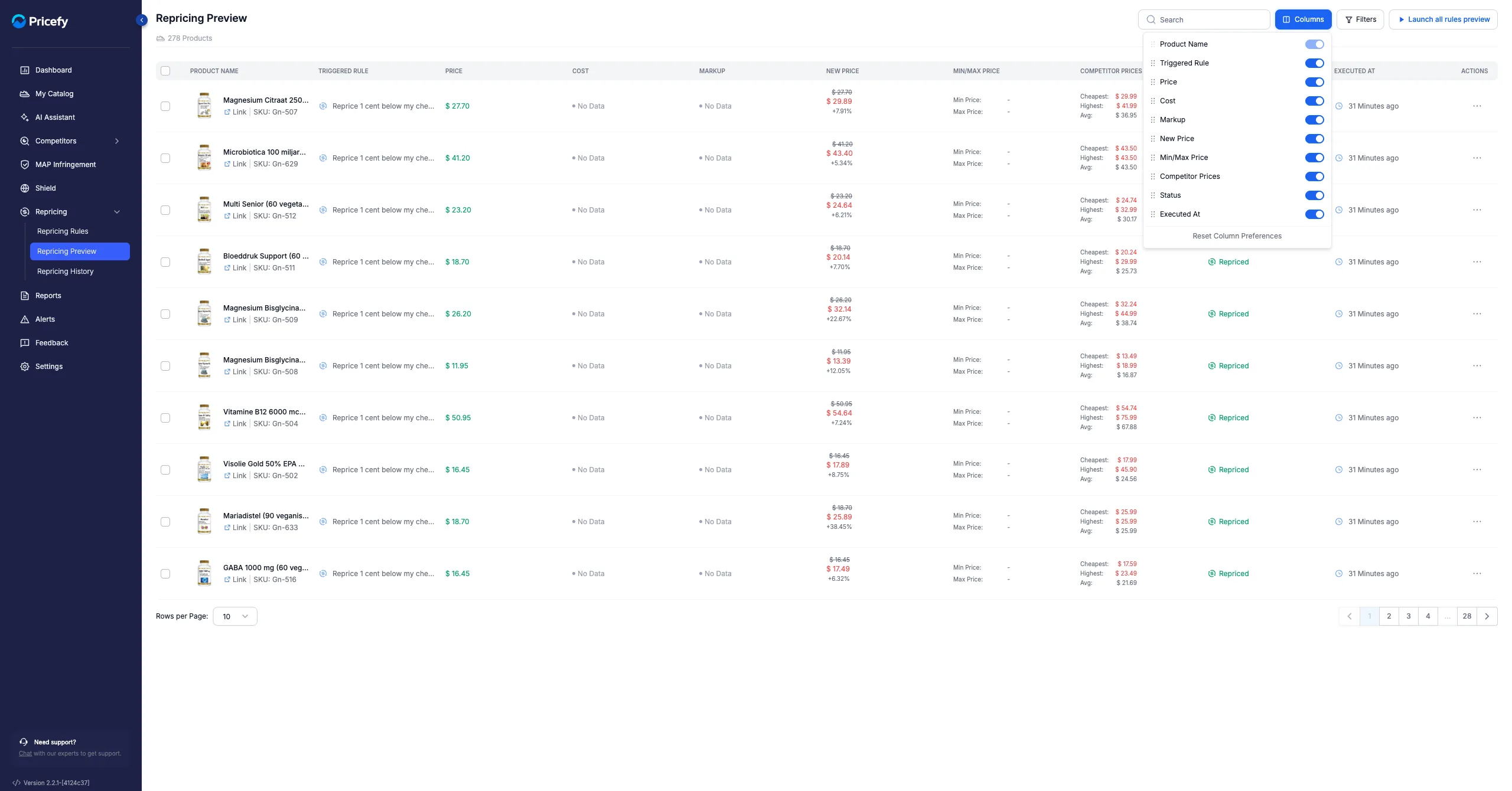
Use the Columns button to show, hide or reorder columns.
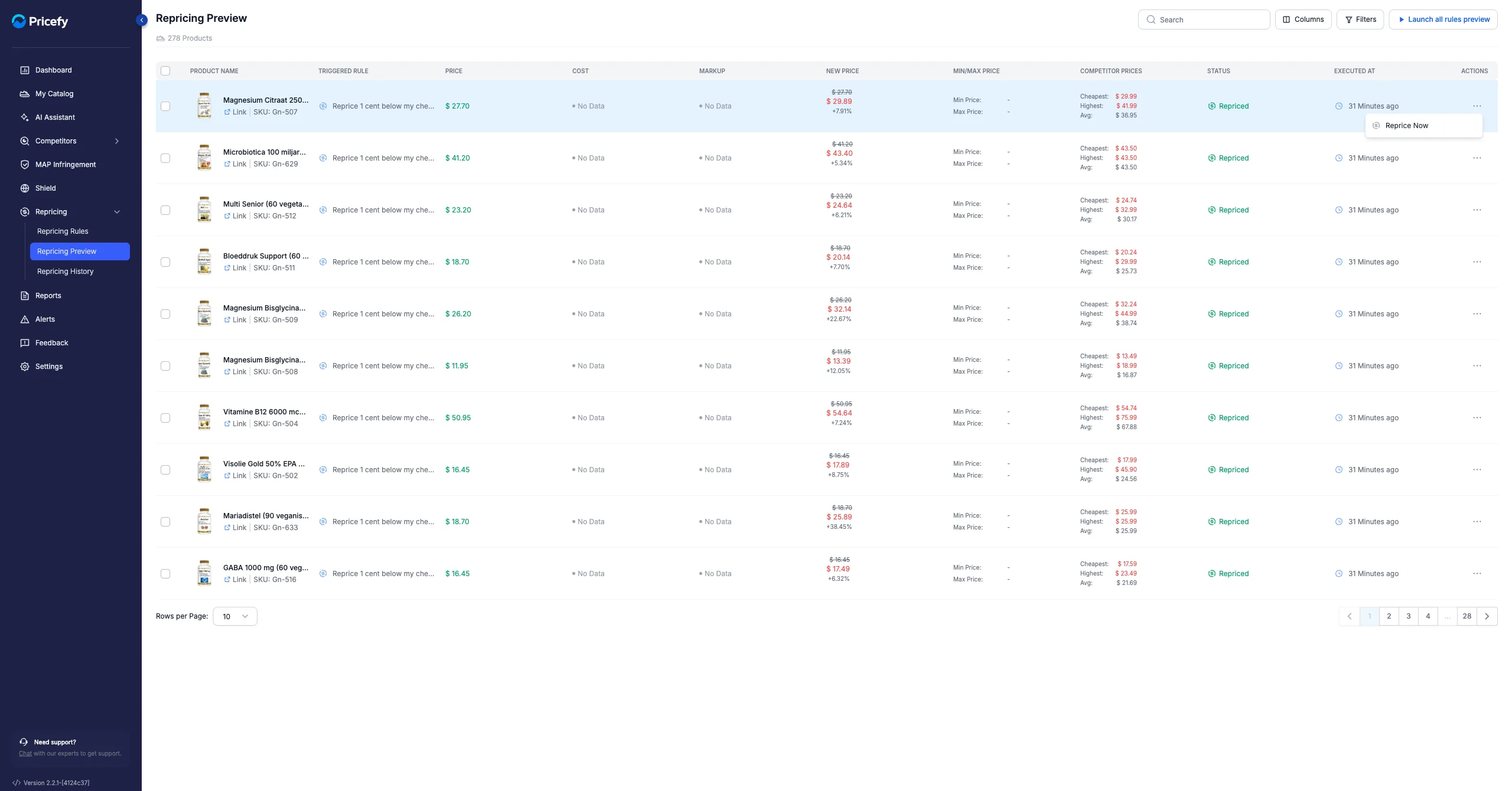
Apply the suggested prices
- One product — open its actions menu and click Reprice Now.
- Several — tick the products (or Select all), then click Reprice Now in the toolbar.
Good to know: applying prices requires a Pro plan or higher. If a rule last ran more than 6 hours ago, launch a new preview to refresh the suggestions.